5 Step Workflow to Capture Figma Feedback for Designers, Keep the Why
5 Step Workflow to Capture Figma Feedback for Designers, Keep the Why

Capture Figma feedback by combining inline comments for immediate context, a structured capture layer (a plugin, review tool, or survey) for anything that needs tracking, and a short decide-and-record step that turns scattered comments into traceable decisions. Two artifacts make this work: a feedback capture grid for organizing input, and a decision record that preserves why a change happened. Skip either one and feedback either gets lost or gets ignored.
TL;DR:
- Feedback should be organized using grids and decision records to prevent comments from getting lost or ignored, especially when multiple comments are spread across pages.
- Structured workflows recommend tagging each feedback item with severity, owner, and context, then converting critical issues into formal decisions with clear rationale and deadlines.
- Using rating surveys along with comments helps identify patterns and prioritize redesigns based on both qualitative and quantitative data.
- Minor issues can stay in native comments for speed, while major or multi-stakeholder decisions should be documented with structured records to ensure proper tracking.
- Turning feedback into traceable decisions with tools like the Intent Ledger preserves the reasoning behind changes and reduces repeated debates.
Table of Contents
- Methods and Tools to Capture Figma Design Feedback
- How Do You Turn Comments Into a Repeatable Feedback Workflow?
- Structuring and Analyzing Feedback: Grids, Tags, and Quick Metrics
- Copy-Ready Templates for Your Next Feedback Round
- Why Structured Records Preserve the Reasoning Behind a Design Change
- When Should Feedback Stay in Figma vs. Become a Formal Record?
- Turn Captured Feedback Into Traceable Decisions With The Intent Ledger
- Sources
- FAQ
Methods and Tools to Capture Figma Design Feedback
The problem shows up later, when you have 40 comments spread across a dozen pages and no way to tell which ones actually got resolved. Comments are great for specificity, terrible for tracking.
That gap is exactly what plugins and third-party tools try to close. A few patterns solve different problems:
- Comment-to-task plugins pull Figma comments into a board or spreadsheet so nothing sits unresolved in a frame nobody revisits.
- Client-facing review tools give non-Figma users a no-login link to leave feedback and formal approve or request-changes actions tied to a specific version, which matters when a client needs to sign off on a design and you need proof they did. Aligno’s review tool is one example of this pattern, letting reviewers pin comments and record decisions per version without a Figma account.
- Embedded issue-reporting widgets, similar to the Marker.io pattern, let a tester click a button inside a live prototype and generate an annotated, contextual report that maps cleanly to a task instead of a vague comment.
- Prototype-embedded surveys collect structured, quantifiable answers (ratings plus open text) rather than free-form comments. Responsly’s Figma integration embeds a prototype directly inside a survey and aggregates responses per frame, which is the difference between “people seemed to like it” and an actual number you can defend in a design review.
Some teams still just drop sticky notes directly on the canvas and keep a running revision list, a low-effort pattern that designers document works fine at small scale but falls apart once more than two or three people are commenting at once.
Pick based on stakes: internal layout tweaks stay in native comments. Client approvals, usability testing, and anything with a paper trail requirement move to a review tool or survey.
How Do You Turn Comments Into a Repeatable Feedback Workflow?
A workflow only works if it’s short enough that people actually follow it; adopting AI productivity workflows can help streamline these steps effectively. Here’s a five-step version that fits most Figma projects without adding overhead.
- Prepare. Lock the frame’s version, confirm reviewer permissions, and tell reviewers explicitly what to focus on (a flow, a component, a copy pass). Vague prompts like “any thoughts?” produce vague feedback.
- Capture. Route feedback by audience: internal designers use inline comments, clients use a no-login review link, and usability testers get a structured survey with rating questions. Mixing all three into one comment thread is how context gets lost.
- Organize. Every item gets tagged with a frame or component reference, a severity level, and a proposed owner. No exceptions, even for feedback that seems minor.
- Decide. Convert flagged items into decisions or tasks with a named owner, a deadline, and an acceptance criterion. “We’ll consider it” is not a decision.
- Close the loop. Tell the reviewer what changed and why, mark the item resolved, and archive the record so the next person doesn’t reopen a debate that already happened.
Pro Tip: Batch your “decide” step into a fixed weekly slot instead of triaging comments as they arrive. Constant context-switching between design work and feedback triage is slower than one focused 20-minute pass.
The step people skip most is step five. Fixing the design without telling anyone why is how the same objection reappears three sprints later.
Structuring and Analyzing Feedback: Grids, Tags, and Quick Metrics
A scatter of comments is not data until it’s structured. A feedback capture grid turns loose input into something you can sort, filter, and defend in a stakeholder meeting.
At minimum, the grid needs these fields:
- Context (which flow or screen)
- Quote or paraphrase of the actual feedback
- Frame/component reference (link or ID)
- Severity (blocker, major, minor, cosmetic)
- Suggested fix if the reviewer offered one
- Owner responsible for resolving it
- Status (open, in review, accepted, implemented, verified)
Layer a simple tagging taxonomy on top: type (usability, visual, content, technical), priority, product area, and confidence (how sure you are the feedback reflects a real problem versus one person’s preference). This is where structured surveys earn their keep. A rating question (“how easy was checkout to complete, 1 to 5”) gives you an average score you can track over design iterations, something a comment thread never gives you on its own.
Combine both data types for real leverage. Say a survey shows checkout satisfaction averaging 2.8 out of 5, and eleven separate comments independently flag the same shipping-address step as confusing. That’s no longer “one person’s opinion.” That’s a pattern with a number attached, and it’s a far stronger case for a redesign than either signal alone.
Copy-Ready Templates for Your Next Feedback Round
You don’t need custom tooling to start. A Google Sheet or a Figma page with a table works for most teams.
Capture grid fields to copy directly:
- Context / Screen
- Reviewer
- Quote
- Frame or component link
- Severity (blocker / major / minor / cosmetic)
- Suggested fix
- Owner
- Status
Status states to use consistently: open → in review → accepted → implemented → verified. Five states, no ambiguity about what each one means.
Review invitation text you can paste into a Figma file description or an email:
“This file is open for feedback through [date]. Please comment directly on the frame you’re reacting to, and try to note what specifically isn’t working rather than just ‘this feels off.’ If you’re reviewing on behalf of a team, one consolidated comment per issue is easier to track than five separate reactions to the same thing.”
If you’re borrowing a shared template from a community file, check its license first. Most community templates carry a Creative Commons Attribution license, which usually just requires credit, but it’s worth confirming before you strip attribution out of a reused file.
Why Structured Records Preserve the Reasoning Behind a Design Change
Comments capture what someone said. They rarely capture why a team acted on it, and that gap is where design debt quietly accumulates. Six months later, nobody remembers whether a button moved because of user testing, a client’s preference, or a developer constraint, so the debate reopens from scratch.
A decision record fixes that by pairing the original feedback with the reasoning and the outcome. The Intent Ledger’s record-of-decision fields work well here because they ask for the same things a good capture grid already collects: source, rationale, decision, and owner.
A Figma comment says “this CTA feels buried.” The decision record links that comment, notes that three usability sessions flagged the same issue, states the decision to move the CTA above the fold, and names the designer who made the call and the date. Anyone reading it later understands the reasoning without asking around.
, Rajas
When Should Feedback Stay in Figma vs. Become a Formal Record?
Minor layout tweaks belong in native comments. Speed matters more than a paper trail there. But anything touching an approval, a major flow, or more than one team deserves structured capture. A useful threshold: if the decision affects more than one sprint or more than one stakeholder group, write it down properly. That habit alone kills most of the recurring “didn’t we already discuss this?” meetings.
Turn Captured Feedback Into Traceable Decisions With The Intent Ledger
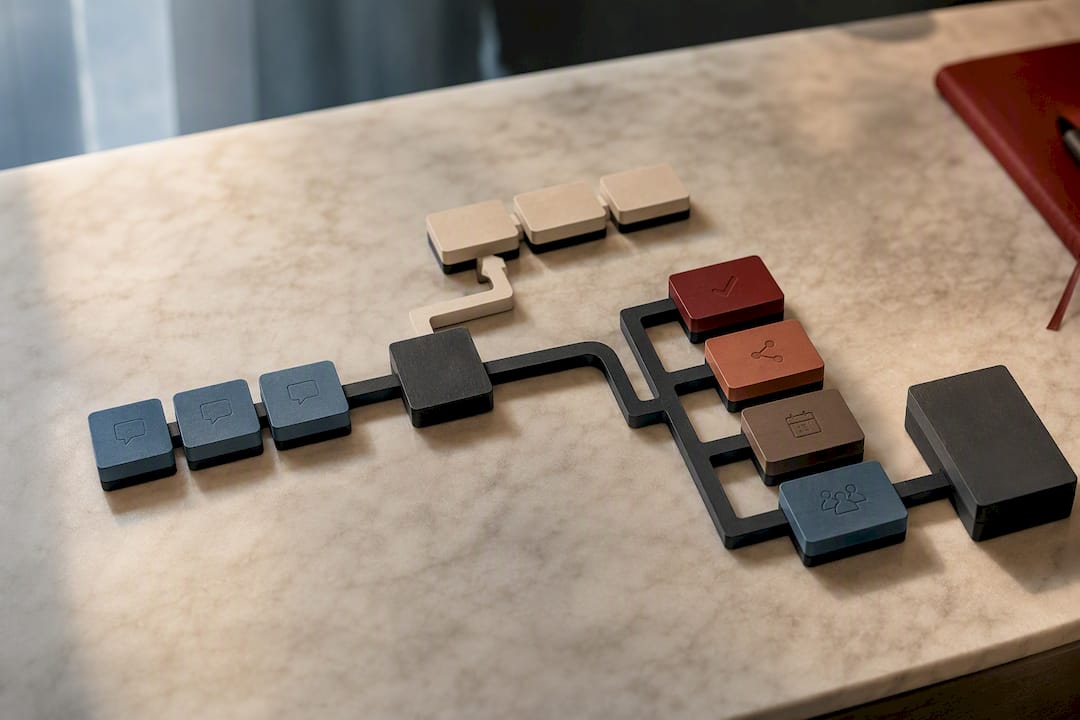
Once your capture grid is full and your comments are tagged, the next problem is memory: keeping the reasoning attached to the decision instead of letting it evaporate after the meeting where it got made. Project memory software is built for exactly that gap. It turns meeting notes, transcripts, critique feedback, and client comments into structured entries that trace each decision, risk, or open question back to the conversation it came from.
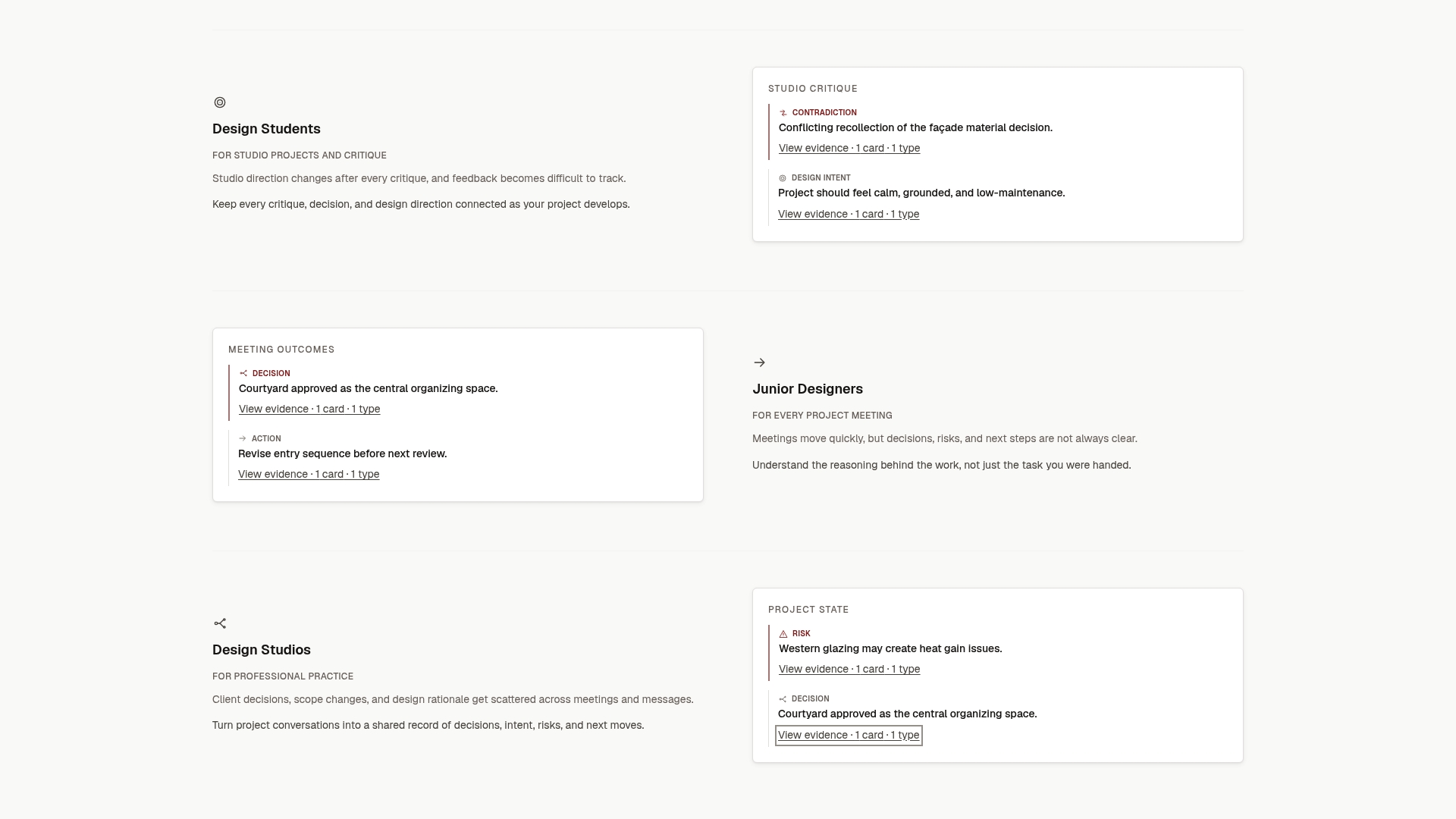
Your Figma review thread and your team’s weekly sync notes both feed the same problem: decisions made in the moment, then lost by the next sprint. An ILM Record links a captured comment about a confusing checkout flow to the meeting where the team debated it, the decision that came out of it, and who owns the fix. That’s the same structure your capture grid already uses, just persistent across the whole project instead of one review round.
Check the product overview to see how ILM Records work, or go straight to the pricing page to see subscription and one-time Record pack options and start turning your next round of feedback into something your team can actually trace back later.
FAQ
What’s the Fastest Way to Capture Figma Feedback?
Use native inline comments for quick, low-stakes input, and reserve a structured tool or survey for anything that needs to be tracked to resolution.
Do I Need a Plugin to Collect Figma Feedback?
No. Plugins and review tools help when feedback volume grows or clients need a no-login review link, but a simple capture grid in a spreadsheet works for smaller projects.
How Do I Prioritize Conflicting Feedback From Multiple Stakeholders?
Tag each item by severity and confidence, then weigh patterns across multiple reviewers over any single strong opinion, especially when a survey score backs up the pattern.
How Should I Track Whether Feedback Was Actually Addressed?
Give every captured item a status field (open, in review, accepted, implemented, verified) and update it as work moves, rather than relying on memory or a closed comment thread.
Why Should I Keep a Record of Design Decisions, Not Just Tasks?
A task tells you what changed; a decision record tells you why, which prevents teams from relitigating the same debate a few sprints later. Tools like The Intent Ledger build that record directly from meeting notes and feedback sources.